
How to connect Steam and find your CS2 matches
Set up match sharing, find the right game and understand why a match may still need its demo.
Quick answer
Connect the correct Steam account in your Flashback profile, then follow the match-sharing setup using Steam's authentication code and most recent match token. Return to Your games in the viewer. Connecting history does not restore replay files that the original source no longer provides.
Jump to a section
Before you start
- Sign in to the Flashback account you want to use.
- Use the Steam account you actually played the match on.
- Match history and an available demo are different things.
Start with the right Steam account
Open your Flashback profile and use the Steam connection flow. Check the account identity before continuing, especially if your browser is signed into a second Steam account. Connecting the wrong account can look like missing matches when the actual problem is simply that you are looking at another player's history.
Steam sign-in establishes the account identity. Match sharing also uses the codes Steam provides for access to your CS2 match history. Follow the fields shown in Flashback rather than pasting a Steam Guard code or a password into a match-sharing field.
Copy the two match-sharing codes
Flashback's setup guide links to Steam's Access to Your Match History page. Sign in on Steam if asked. That page supplies an authentication code and a most recent match token. They serve different purposes: the authentication code grants access, while the match token identifies a starting match.
Copy the complete values into the setup form. The match token starts with CSGO- even for CS2; that prefix alone does not mean you have an old CS:GO demo. If Steam has not generated a recent token, complete a supported match and check the page again. Keep the authentication code private and use the Steam page to revoke it if you need to remove that access.
Find the match and check its source
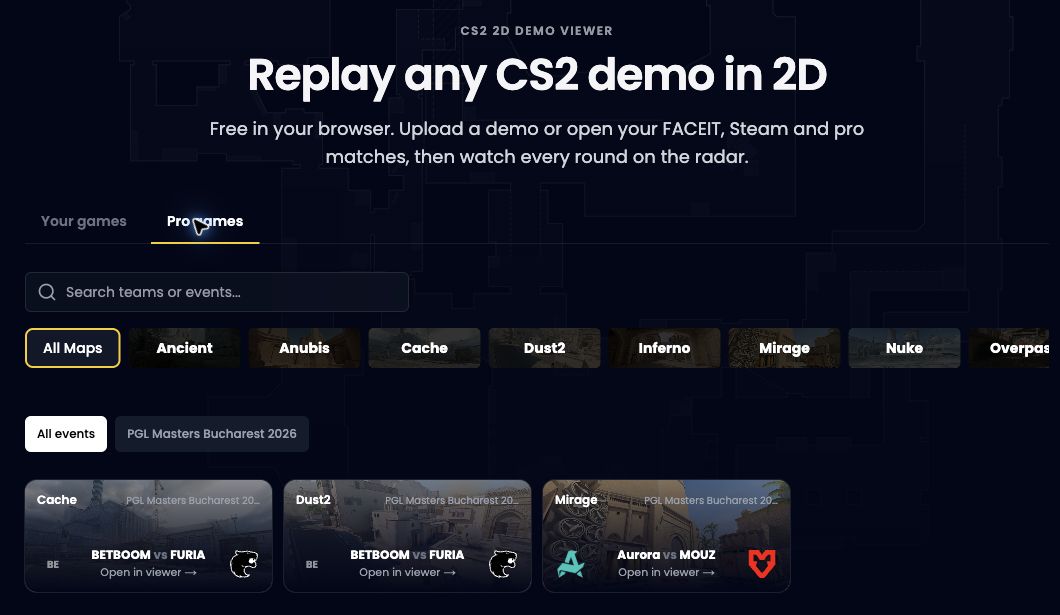
Return to Your games in the viewer. Compare the map, date and score with the match you played. Use that combination instead of relying on a player name, since names can change. Give a newly finished match time to appear and follow any processing state shown by the app.
A match row is not a promise that its demo can still be downloaded. Analysis needs the actual replay file, and a source can stop providing an old demo while keeping its match statistics. If you already saved the file, upload it through the viewer as a separate route.
If your games are missing
Check the connected Steam identity and both match-sharing values before repeating the setup. A truncated token or a revoked authentication code needs to be corrected at the source. Do not repeatedly reconnect an account to try to restore a demo that has expired.
For a FACEIT match, use the FACEIT connection and match room instead. If setup looks correct but the expected Steam match is still missing, send Support the match date, map and visible error. Do not include your authentication code in a public message.
Common questions
Is the Steam match token my Steam Guard code?
No. The match token starts with CSGO-. Use the match-sharing values from Steam's Access to Your Match History page, not a login code.
Will connecting Steam restore every old demo?
No. A match can remain in history after its replay file becomes unavailable. An available demo is required for analysis.
Put the guide to work
Your Steam connection set up for match review. Open the tool when you are ready, or follow a related guide below.