
How to upload a CS2 demo file to an online viewer
Check your file, unpack unsupported archives and get the replay onto the radar.
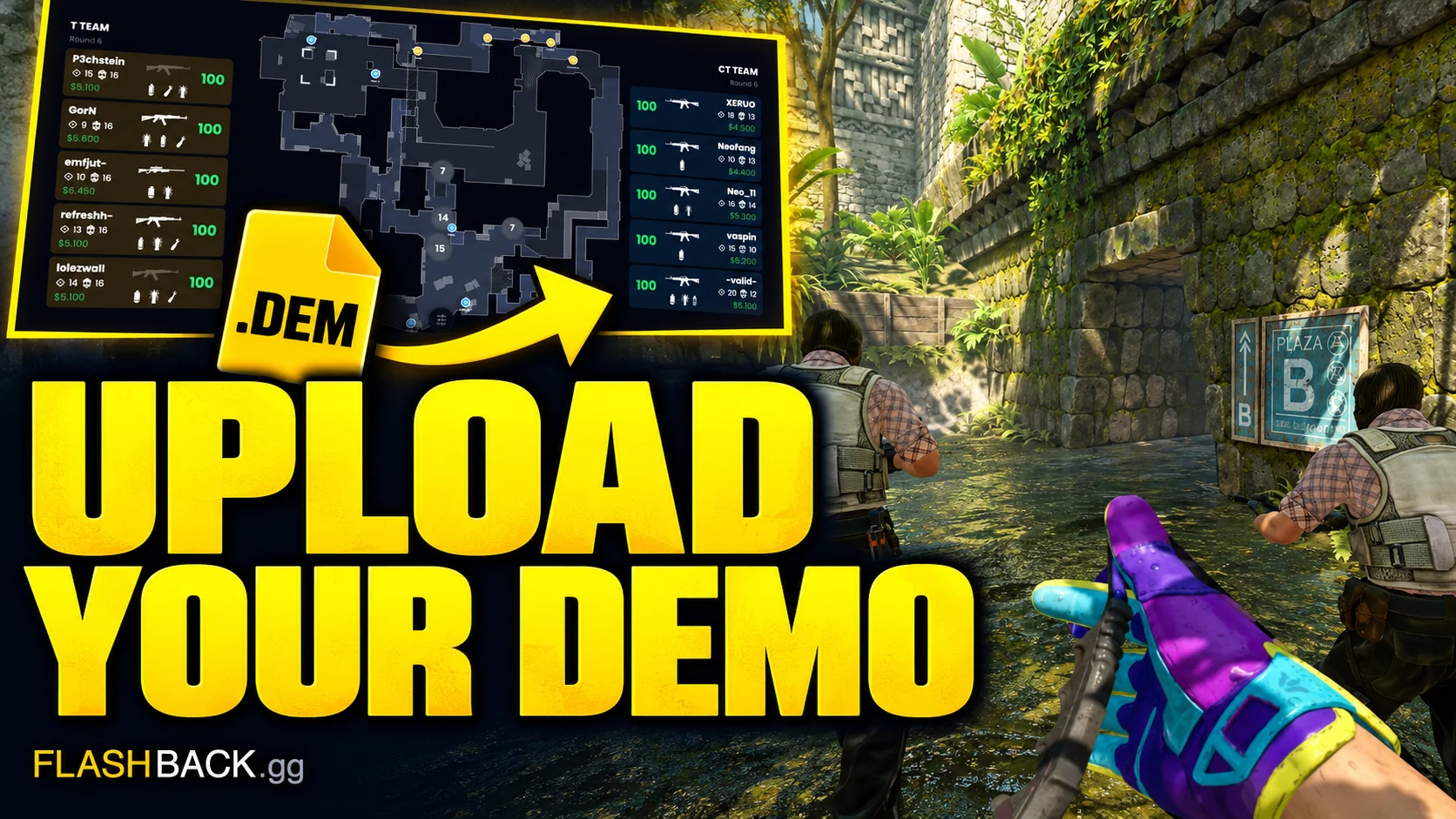
Quick answer
Sign in, open the viewer and select a supported CS2 .dem or .dem.zst file in the upload area. Extract .gz, .bz2 and .zip archives first. Follow the upload and analysis status, then open the ready match. File-size and daily upload allowances apply.
Jump to a section
Before you start
- The file must be a CS2 .dem or .dem.zst, no larger than 600 MB.
- Extract .zip, .gz and .bz2 archives before uploading.
- A free account includes 3 demo uploads per day.
Check what you downloaded
A demo contains match replay data. An MP4 is already a video; a match link identifies a game; a screenshot only captures an image. None of those becomes a demo by changing its file extension. Start with a replay from the platform or server where the CS2 match was played.
Keep the original download until you have successfully opened the analysed match. Confirm that the transfer finished and that you are selecting the full file rather than a browser's partial download. A suspiciously tiny file can be an error page saved under a demo-looking name.
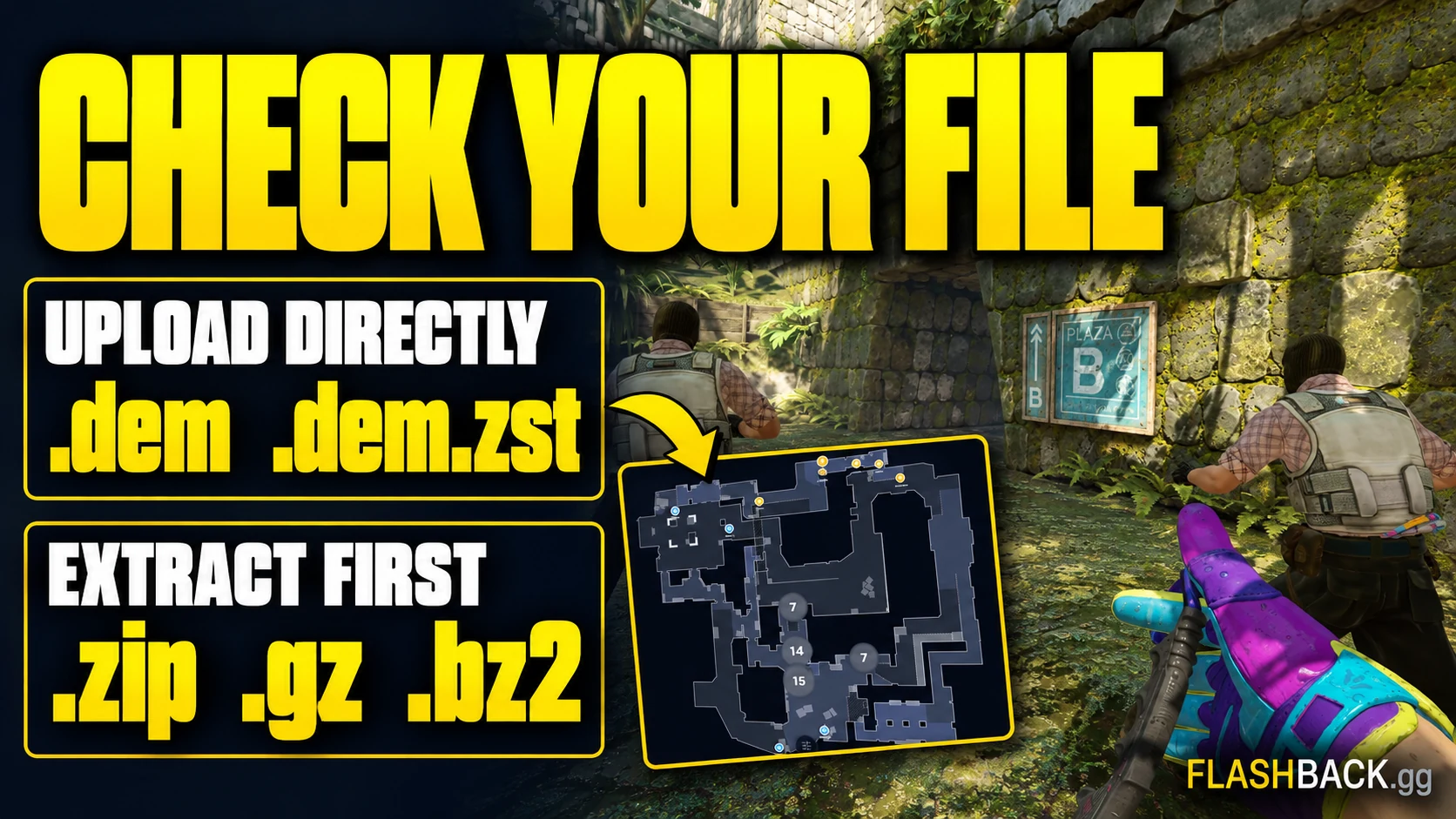
- .dem: select the demo directly.
- .dem.zst: supported directly by the upload flow.
- .zip, .gz or .bz2: extract the archive and select the .dem inside.
- Old CS:GO demo: not a supported CS2 upload.
Upload once, then follow processing
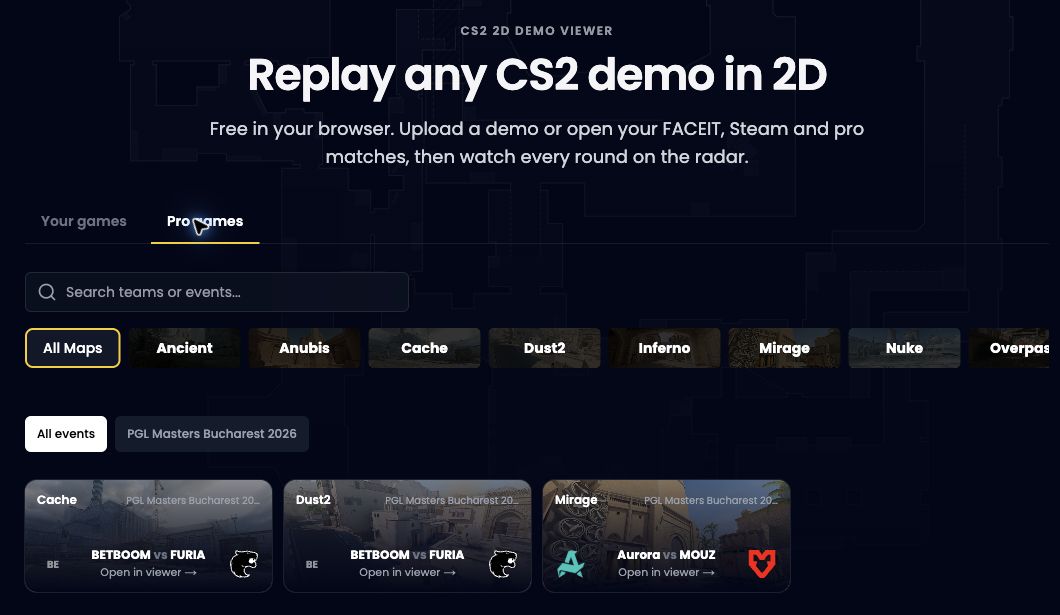
Sign in to Flashback and open the 2D viewer. Use the demo upload area and choose your prepared file. The form checks basic file and allowance requirements before it can proceed. A valid name does not guarantee that the contents are a complete, compatible replay.
Once the upload has been accepted, let analysis finish. Uploading the same file repeatedly does not make its analysis faster and can consume your allowance. Follow the visible state of the uploaded match, then open the replay when it is ready.
Handle file and format errors at the source
The current maximum is 600 MB. An oversized demo needs a supported source or format within that limit; renaming it, cutting random bytes or uploading part of the file will not produce a valid replay. Do not assume that a smaller archive is accepted just because its compressed size is lower.
If the viewer reports an unsupported archive, extract it with an archive utility and inspect the resulting file. If a complete supported demo still fails, keep its match link and the exact error for Support. Those details are more useful than another attempt with an unchanged file.
Use the analysed match
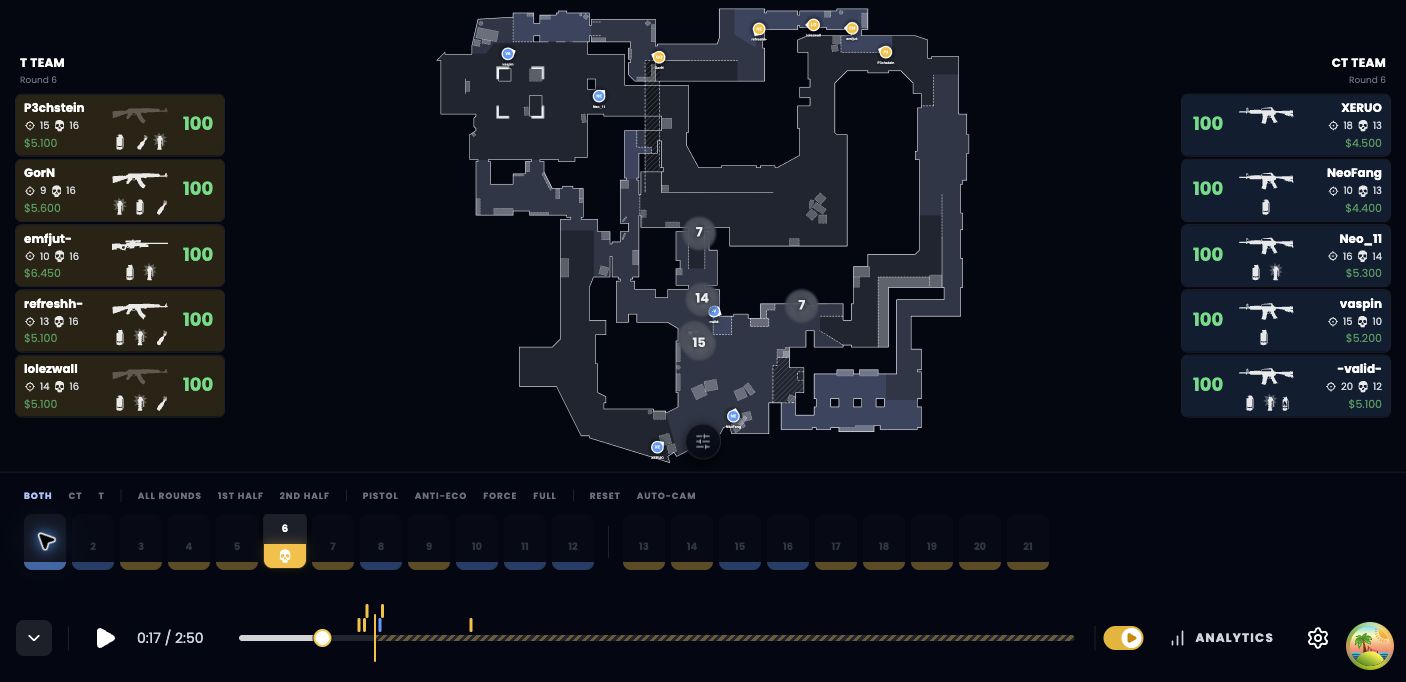
Confirm the map and round before beginning your review. Start with one decision: the first duel, a missed trade or the timing of a site hit. The radar helps explain the positions around that moment, including players outside a single POV.
For a gameplay video, open an analysed, tracked Steam or FACEIT match from Your games in Studio. A standalone upload can be analysed and edited, but is not a render source in the current export flow. Review the selected player and timing in the cut, then submit a separate video render.
Common questions
Can I upload a .dem.gz file directly?
Extract the .gz archive first and upload its .dem file. The direct compressed format supported here is .dem.zst.
Can I upload an MP4 to the demo viewer?
No. The viewer analyses CS2 demo data. A rendered video cannot supply the match data needed for a 2D replay.
Put the guide to work
A supported demo uploaded and ready for processing. Open the tool when you are ready, or follow a related guide below.