
How to watch and analyse a CS2 demo
Get a match onto the radar, find the decision that changed a round and leave with one thing to practise.
Quick answer
Open the 2D viewer and choose a public pro match, a connected Steam or FACEIT match, or a supported demo upload. Pick one round and use the radar and timeline to review positions, trades and utility. Your own matches and uploads require an account; public pro replays do not.
Jump to a section
Before you start
- Public pro matches can be opened without an account.
- Your own matches and uploads require a free Flashback account.
- The viewer is a 2D replay. A first-person video is a separate Studio render.
Get a match into the viewer
Start with a match you recognise. Reviewing the map, score and round number is easier when you remember what you were trying to do. If you only want to learn the controls, a public pro match is a useful first stop.
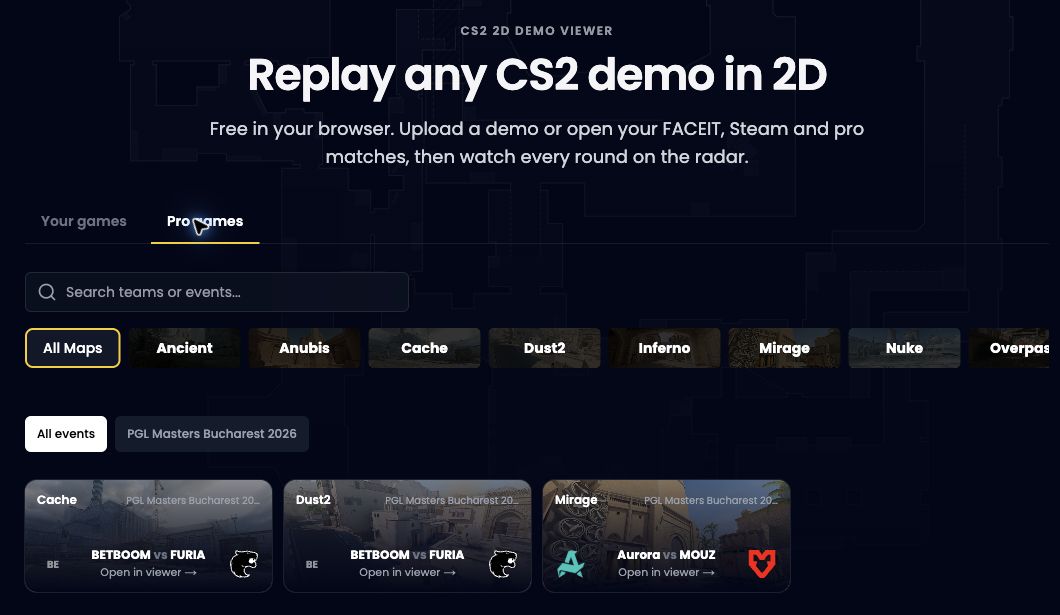
Choose your source
Open the 2D Viewer. Use Pro games for a public match. For your own games, sign in and connect Steam or FACEIT from your profile, then return to Your games.
Upload a file if you already have one
The upload area accepts a CS2 .dem or .dem.zst file, up to 600 MB. Extract .zip, .gz or .bz2 archives first. The free plan includes 3 uploads per day; the plans page lists the current allowances.
Let analysis finish
A match with existing analysis can open straight away. A new match or upload must be processed first. Follow its processing status instead of submitting the same file repeatedly.
Find the round, then rewind before the mistake
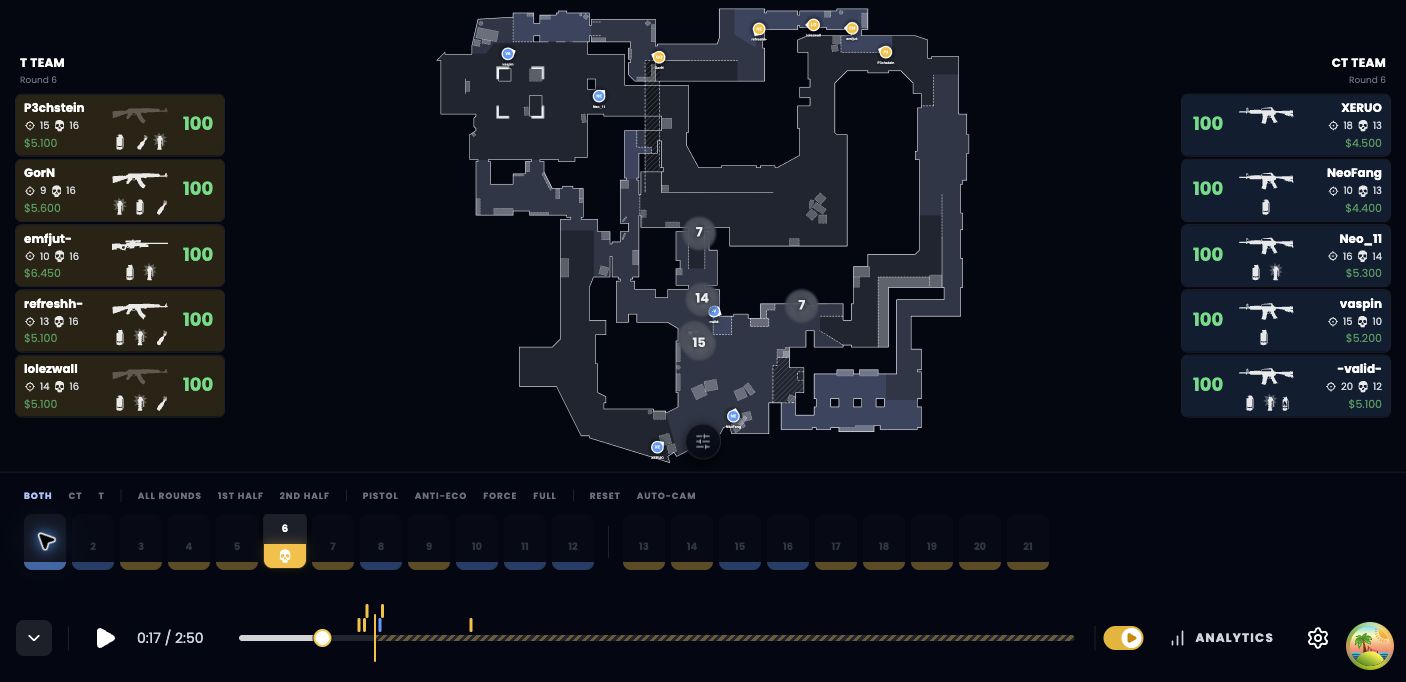
Use the round timeline to jump to a round you want to understand. Start a little before the first important contact. A death tells you where a fight ended; the setup often tells you why it happened.
Play the round once at normal speed. Then slow down the approach and follow your player. Watch the other players on the radar as well: a route that looks safe from one POV can leave a teammate exposed or make a trade impossible.
- Check who can see or support the first player into a fight.
- Watch the spacing between teammates before contact.
- Notice when a smoke or flash arrives relative to a player's movement.
- Compare the plan before contact with the team's response afterwards.
Use the same four questions every time
Take a lost site entry as an example. You die first and your teammate arrives several seconds later. Replaying only the duel might lead you to blame your aim. On the radar, you can test whether the entry, support flash and second player were actually coordinated.
What was the objective?
Name the task: take space, defend an angle, trade a teammate or save. Judge the decision against that task.
What information was available?
Separate information you had while playing from information the replay reveals. Do not expect yourself to react to an opponent you could not know about.
What support was ready?
Check teammate distance, utility timing and whether anyone could trade. Look for a fix you can repeat, such as waiting for the second player before committing.
What will you change?
Write one action for the next match. 'Enter after the flash and stay tradeable' is more useful than 'play better'. Review another similar round to see whether the pattern repeats.
Keep the lesson or turn the round into a clip
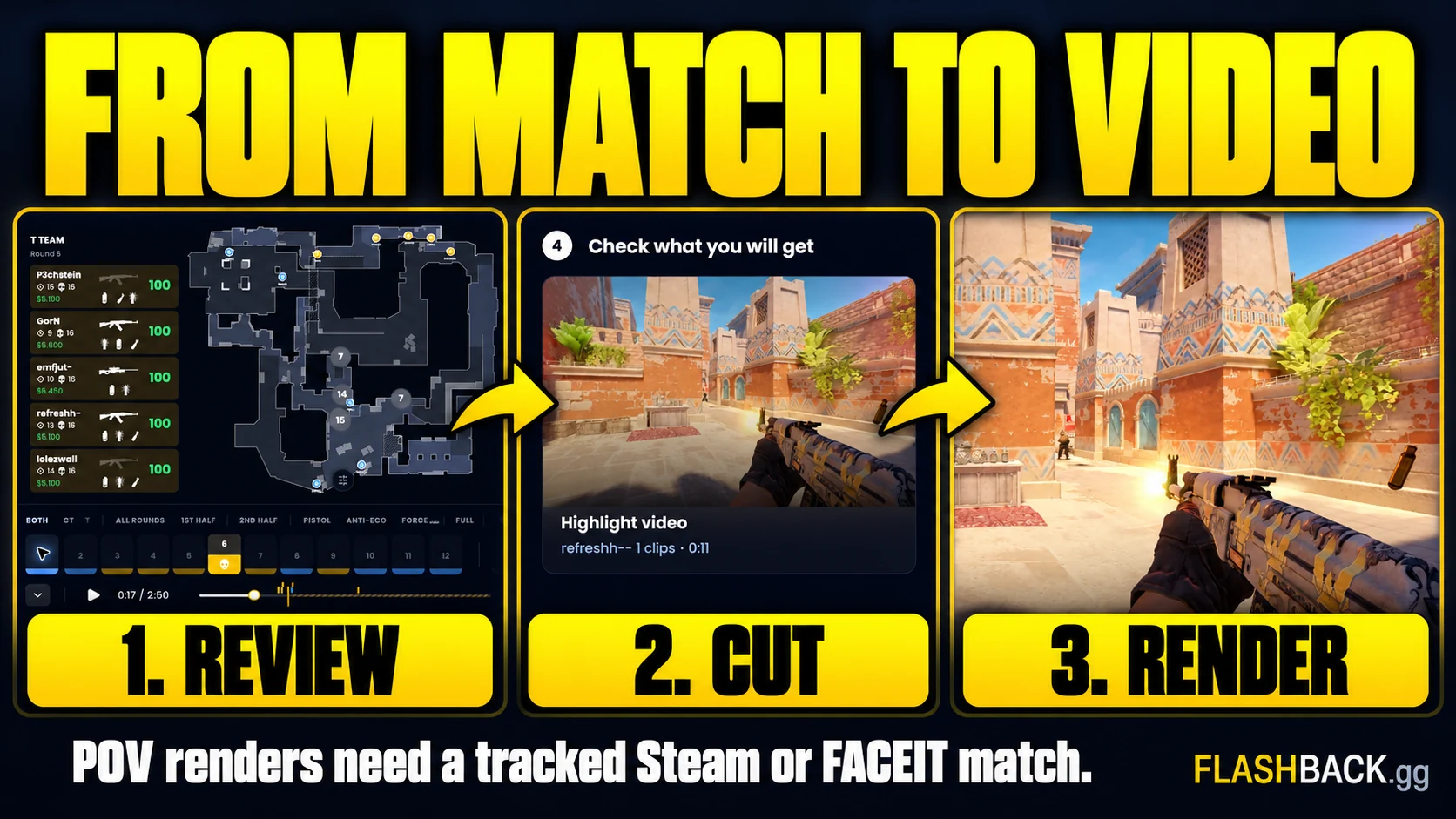
Use the viewer's drawing and image export tools when you want to explain a route, position or rotation. PNG and GIF exports document the radar view. They are different from rendering the player's first-person gameplay.
For a playable POV video, open an analysed, tracked Steam or FACEIT match from Your games in Studio. Public pro entries and standalone demo uploads are not automatically usable as Studio render sources. Choose the player and build the cut from the tracked match. For inspiration, browse an event or a pro POV and compare how the same position is played.
If a demo will not open
Confirm that you have a supported CS2 demo rather than an MP4, an archive or a demo from a different game. If the file is compressed, check its extension before uploading. A failed or unavailable demo needs attention at its source; reconnecting an account cannot restore a file that the source no longer provides.
For a connected match that needs its demo downloaded, follow the request shown by Flashback. FACEIT downloads are subject to availability and limits. If analysis fails repeatedly, use Support and include the match link and the visible error. Never send your Steam authentication code in a public support message.
Common questions
Can I watch a CS2 demo without installing CS2?
Yes. Flashback's 2D viewer runs in the browser and shows the analysed match on a radar. It is not the game's first-person demo player.
Is the CS2 demo viewer free?
Public pro replays need no account. A free account can open personal matches and upload 3 demos a day, subject to availability and processing limits.
Does a 2D replay export give me a POV video?
No. PNG and GIF exports show the radar view. Use Studio to render the player's first-person gameplay as a video.
Put the guide to work
Your first useful round review. Open the tool when you are ready, or follow a related guide below.