
How to open and analyse your FACEIT demo
Follow a finished FACEIT match from your account to a round review, with a fallback if the demo is missing.
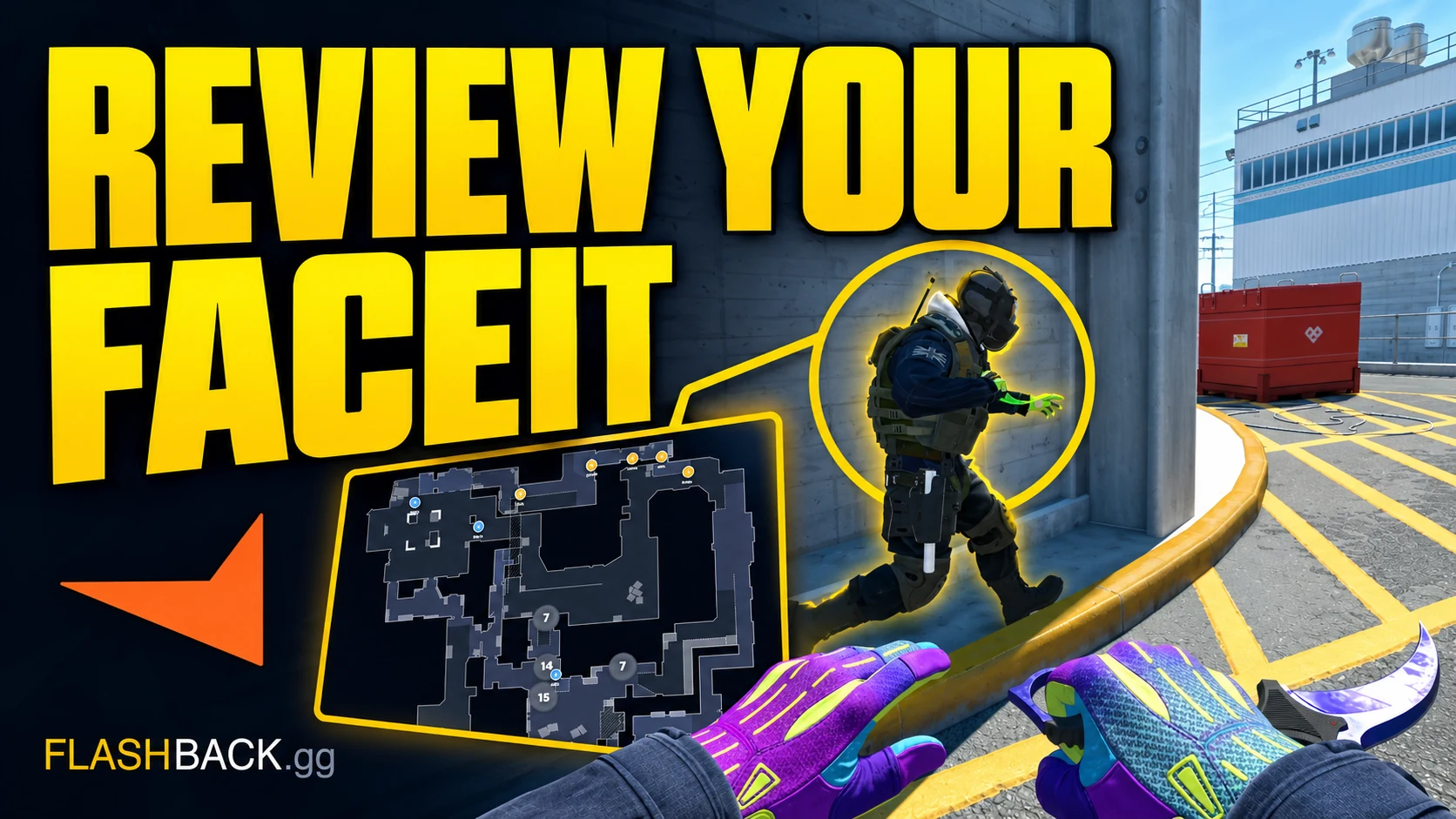
Quick answer
Connect the FACEIT account you played on, find the finished match in Your games and follow any demo download or analysis request shown. If you already have the replay file, upload the supported CS2 demo instead. A match can only be reviewed while its demo or analysis is available.
Jump to a section
Before you start
- You need a Flashback account and your own connected FACEIT account.
- A finished match and a downloadable demo are different things.
- Reviewing the radar and rendering a video are separate operations.
Connect the FACEIT account you played on
Sign in to Flashback, open your profile and choose Manage connections. Connect FACEIT and complete its sign-in flow. Check the displayed nickname before looking for a match: a game played on a different FACEIT account will not belong to this connection.
If you already connected Steam, you still need the FACEIT connection for this workflow. A Steam identity identifies your game account; FACEIT supplies the match history for games played on its platform.
Find the match and check its processing state
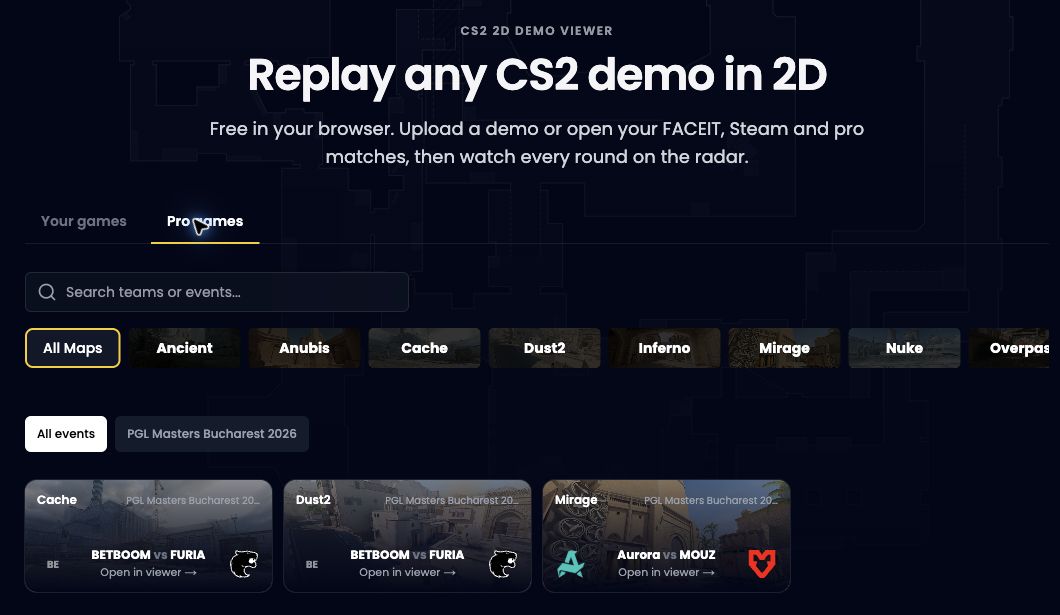
Open the 2D Viewer and use Your games to find the finished match. Check the map, date and score against the FACEIT match room. This avoids reviewing the wrong game when you played the same map several times.
Match statistics can arrive before the demo has been downloaded or analysed. If Flashback offers a request to download or analyse the demo, follow that prompt. An existing analysed match opens without another download. FACEIT downloads can be limited, so a match being listed does not guarantee that its replay is immediately available.
Confirm the match
Match the date, map and score to the FACEIT match room.
Request analysis if prompted
Use the action offered for that match. Wait for the processing state to change rather than opening duplicate requests.
Open the replay
Once analysis is available, enter the viewer and select a round on the timeline.
Review one decision before reviewing your whole match
Choose a round with a specific question: why did the site hold fail, why was the opening death untradeable, or why did the retake run out of time? Rewind before the first contact, follow your player and watch the spacing of the rest of the team.
For a retake, look at where the surviving players start and whether they arrive together. For an opening death, check if a teammate could trade without crossing another dangerous angle. Use utility timing and the kill feed to connect the radar movement with the fight.
Keep the distinction between a replay and a diagnosis. One lost duel does not establish a recurring problem. Compare two or three similar rounds before deciding what to practise.
Use a local demo as a fallback
If the FACEIT match room offers a demo download, save it and check the file you received. Extract a .gz, .bz2 or .zip archive until you have the .dem file; Flashback also accepts .dem.zst uploads. Sign in and use the viewer's upload area.
The current upload limit is 600 MB. A file above the limit needs a supported smaller source; renaming or splitting it into arbitrary parts does not create valid demos. A local upload can avoid rediscovering the match through the connection, but the file still has to be valid and compatible with analysis.
Take the round into Studio
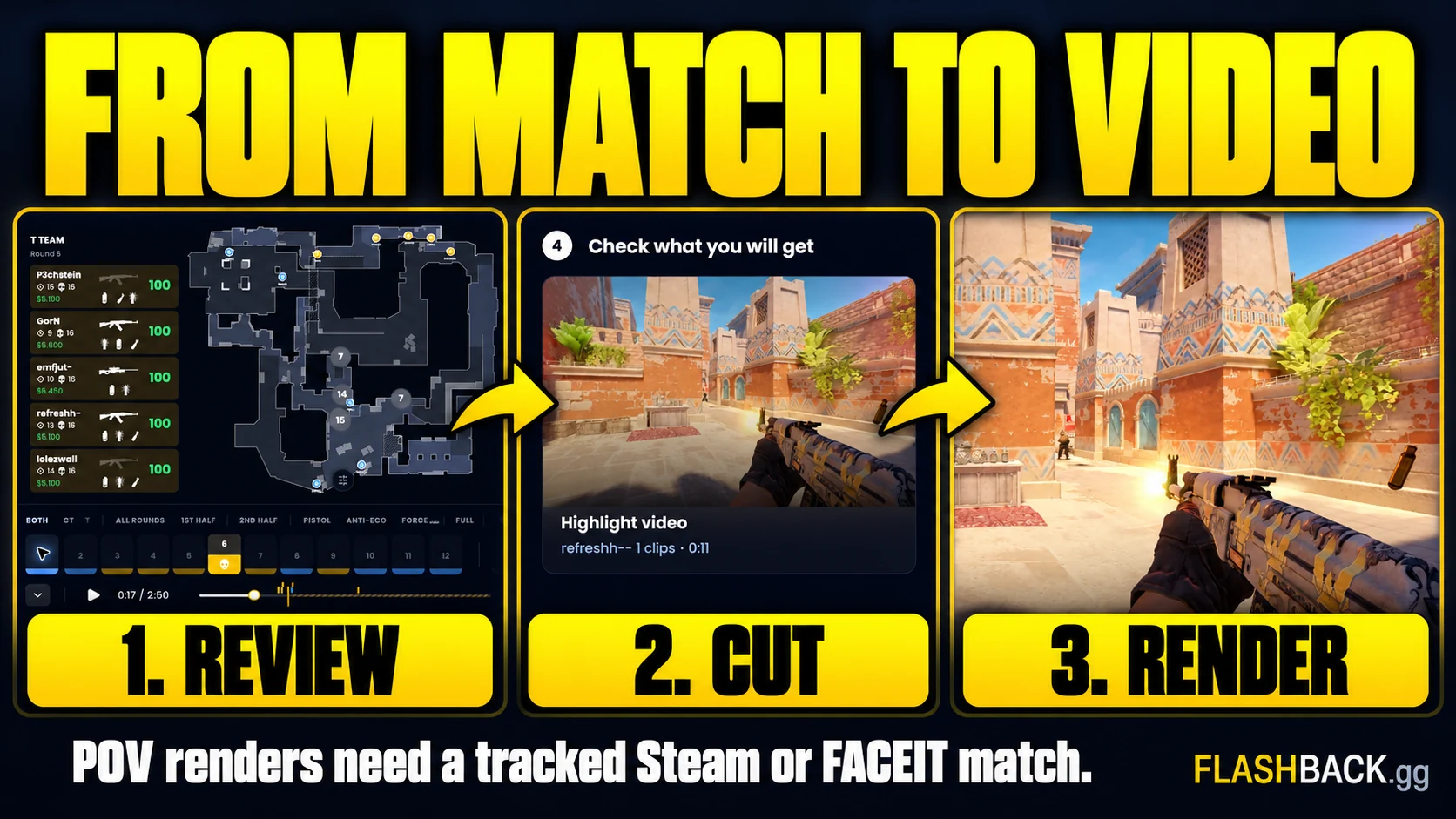
Note the match and round number you want to keep. Open Studio, choose the same match and select the player. Preview the selected moments before creating the video: include the setup that makes the play understandable, not just the final kill.
Check the guided summary and any available 2D preview before rendering. Creating the finished first-person video requires a tracked game source and a plan with video exports. Check the plan page for current allowances and then use Your Content to watch or download the completed render.
Common questions
Why can I see FACEIT stats but not the replay?
Match history and performance statistics can be available before the demo is downloaded or analysed. Follow the match's processing state and request analysis if offered.
Do I need to download the FACEIT demo myself?
Not when Flashback can retrieve and process it through the match. If that path is unavailable but the match room still offers the demo, a local file upload is an alternative.
Can Flashback recover an expired FACEIT demo?
Not from statistics alone. You need a usable demo from the source or a copy you previously saved.
Put the guide to work
A FACEIT round ready to review or clip. Open the tool when you are ready, or follow a related guide below.