
How to make CS2 clips for TikTok and YouTube Shorts
Build a short around one readable play, choose a vertical export and check the result before posting.
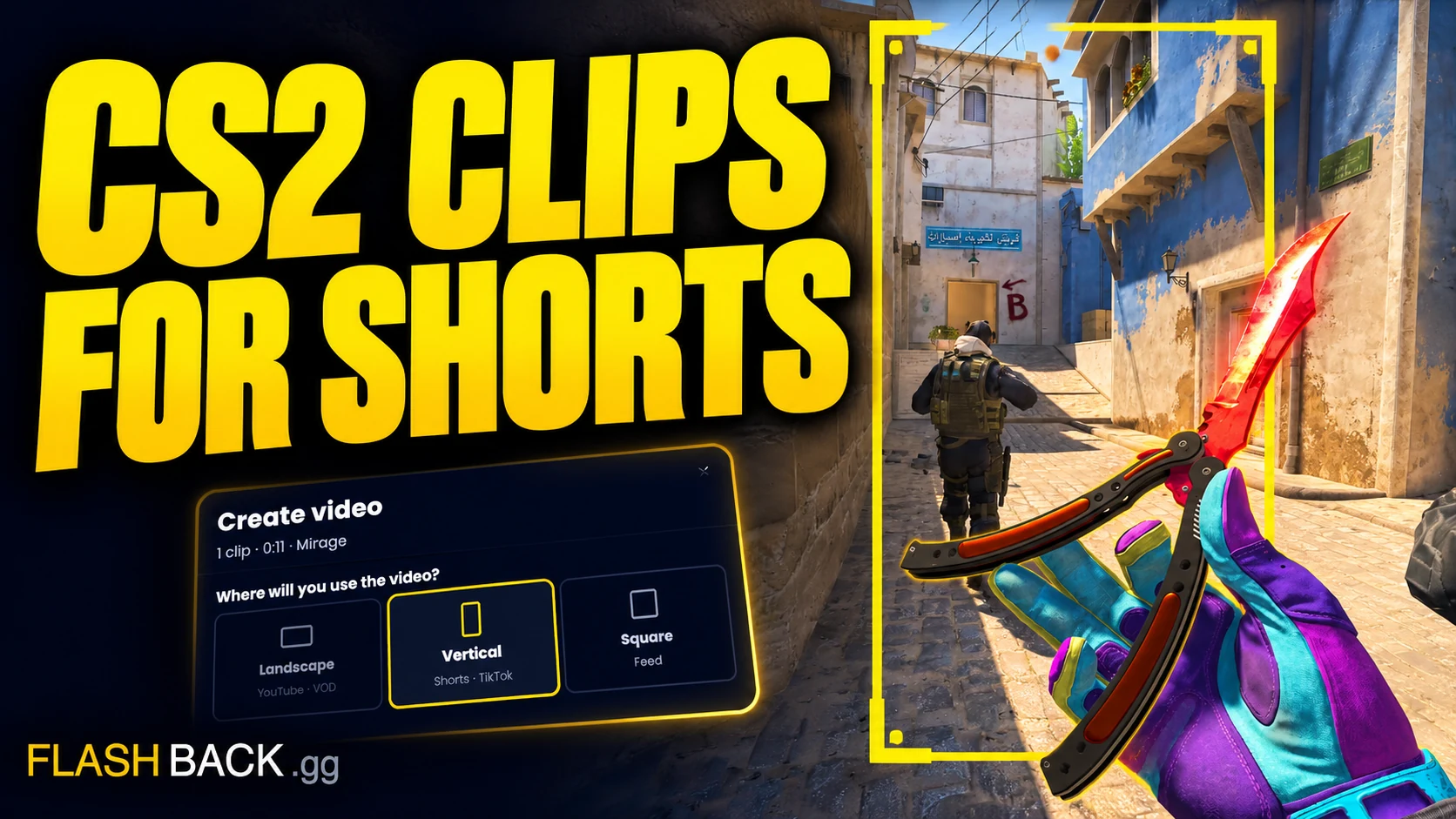
Quick answer
Choose an analysed, tracked Steam or FACEIT match and player in Studio, build a short cut and select vertical 9:16 in the export dialog. Check the final render at phone size before downloading and posting it. Any available 2D preview helps with timing; judge the actual crop and audio in the finished video.
Jump to a section
Before you start
- POV rendering currently needs an analysed, tracked Steam or FACEIT game from Your games. A standalone upload is not a render source.
- Start from an analysed match and a specific player. Manual editing requires Plus or Pro.
- Studio offers landscape 16:9, vertical 9:16 and square 1:1 exports.
- The guided Short video recipe can time selected plays to music.
Pick a play that makes sense on its own
A short needs enough context for someone who did not watch your match. An ace, a clutch, an opening duel or a clean utility setup can work. Start by finding the round in the viewer and naming what the viewer should notice.
For a clutch, keep the information needed to understand the situation and the final outcome. For a quick duel, cut down the empty travel time. A short can contain multiple moments, but they should support a clear idea rather than make the viewer work out why unrelated rounds were joined.
Choose a guided cut or arrange your own
Open the match in Studio and select the player. Choose Highlights for an initial selection of notable plays. Choose Short video when you want a music-based edit; the editor lets you choose the music before building the cut.
Use the available 2D preview before export. For manual segment review, open the Pro editor. If a segment starts after the setup or ends before the outcome, adjust its boundaries in the desktop Pro editor (Plus or Pro). Remove repeated or empty sections. The goal is to preserve the sequence that makes the play readable, even when the final video is short.
Keep a useful lead-in
Leave enough time to show the angle, positioning or utility before the first important action.
Keep the payoff
Let the last action and its immediate result finish. Check that a cut does not hide the decisive kill or round outcome.
Listen as well as watch
If you use music, check the balance against gameplay audio. Use music you are entitled to publish on the destination platform.
Choose the shape for where you will post
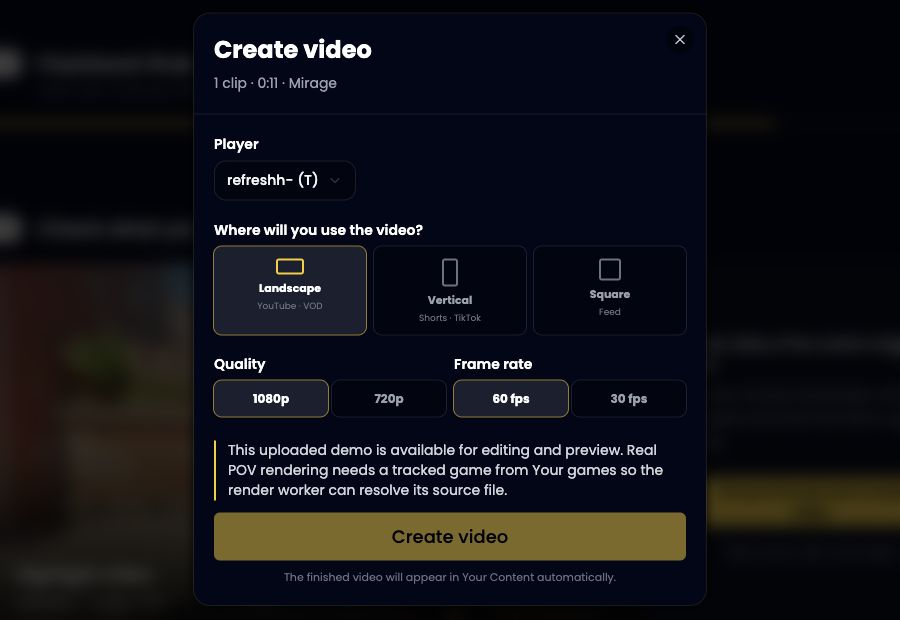
Vertical 9:16 is a useful starting point for a phone-oriented short. Landscape 16:9 gives more horizontal space for a normal gameplay video. Square 1:1 is another available option when it fits the destination.
A wide CS2 scene does not automatically become readable in a narrow frame. Check where the opponent, crosshair and important HUD information end up. Watch the completed render on a phone-sized screen before publishing. Interface overlays on the destination can cover parts of the image, so do not place essential information against the edges.
Render once the edit is ready, then check the file
Select the export format and a quality supported by your plan, then create the video. The actual POV render is generated after submission. The 2D preview helps check the selected actions and timing; it is not a substitute for watching the completed video.
When it is ready in Your Content, check the beginning, cuts, audio and final frame. Download the file and upload it to your chosen platform. Flashback's render completes the video-production step; do not assume that it also publishes the clip to your social account.
- The main action remains visible in the vertical frame.
- The first seconds explain what is happening.
- The clip ends after the outcome, without an accidental extra scene.
- Music and other added material are cleared for your use.
- The downloaded file plays correctly with sound.
Common questions
Can I export a vertical CS2 clip?
Yes. Studio offers a 9:16 export option alongside 16:9 and 1:1. Check the framing in the finished render before posting.
Can I make a short without an existing video recording?
Yes. A supported, available match demo can be analysed and rendered into a POV video. A local recording is not required.
Does Flashback post the clip to TikTok or YouTube?
This workflow creates the video in Your Content. Download the finished file and publish it on the platform you choose.
Put the guide to work
A short, vertical gameplay video. Open the tool when you are ready, or follow a related guide below.