
How to export a CS2 radar review as a PNG or GIF
Turn a paused position or short radar sequence into something your teammates can use.
Quick answer
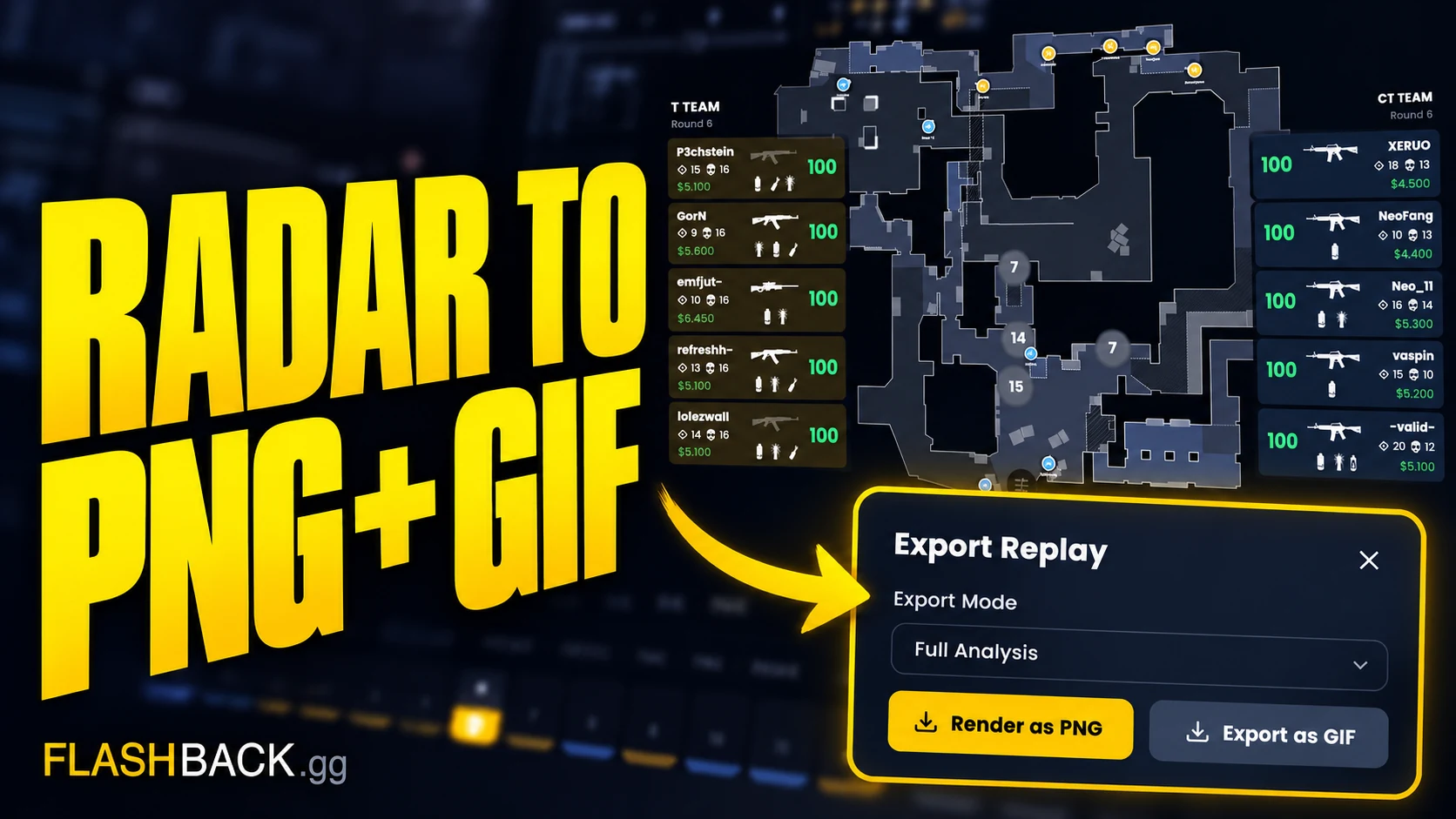
Open an analysed round, set the view and use Map tools → Export. Choose PNG for a paused tactical position or GIF for a short radar sequence. Inspect the saved result and share the round context with it. For in-game footage, use a separate Studio POV render.
Jump to a section
Before you start
- Open an analysed match and find the round you want to explain.
- PNG captures a still radar view; GIF shows an animated radar sequence.
- For first-person gameplay, use a Studio video render instead.
Choose the one thing you want to explain
Start with a question the team recognises: why the entry was isolated, how a rotation opened a site or when support utility arrived. Find the round and the moment that answers it. A shared image is more useful when everyone knows what decision it is meant to illustrate.
Choose a PNG when a paused state is enough, such as the positions before an execute. Choose a GIF when the movement or timing is the point. Avoid exporting an entire sequence simply because it is available; a focused example is easier to discuss.
Set the view and add only useful drawings
Use the viewer's layers and drawing tools to make the relevant position or route clear. Keep enough surrounding information to explain the setup. If every player, route and utility event is highlighted equally, the annotation stops guiding the reader.
For a proposed correction, distinguish your drawing from what the replay actually shows. Say which route is the observed play and which is the suggested change. The purpose is to make a decision understandable, not to imply that an alternative route was guaranteed to win the round.
- Keep the match and round number with the example.
- Name the player or role being discussed.
- Use a small number of drawings around the decision point.
- Explain what information was available during the match.
Export, then inspect what you saved
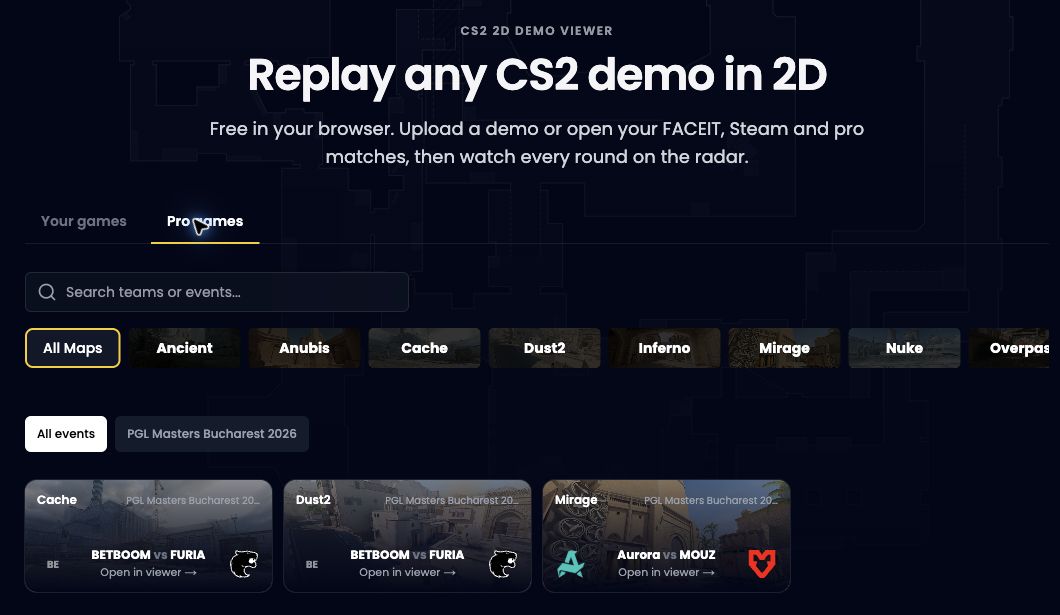
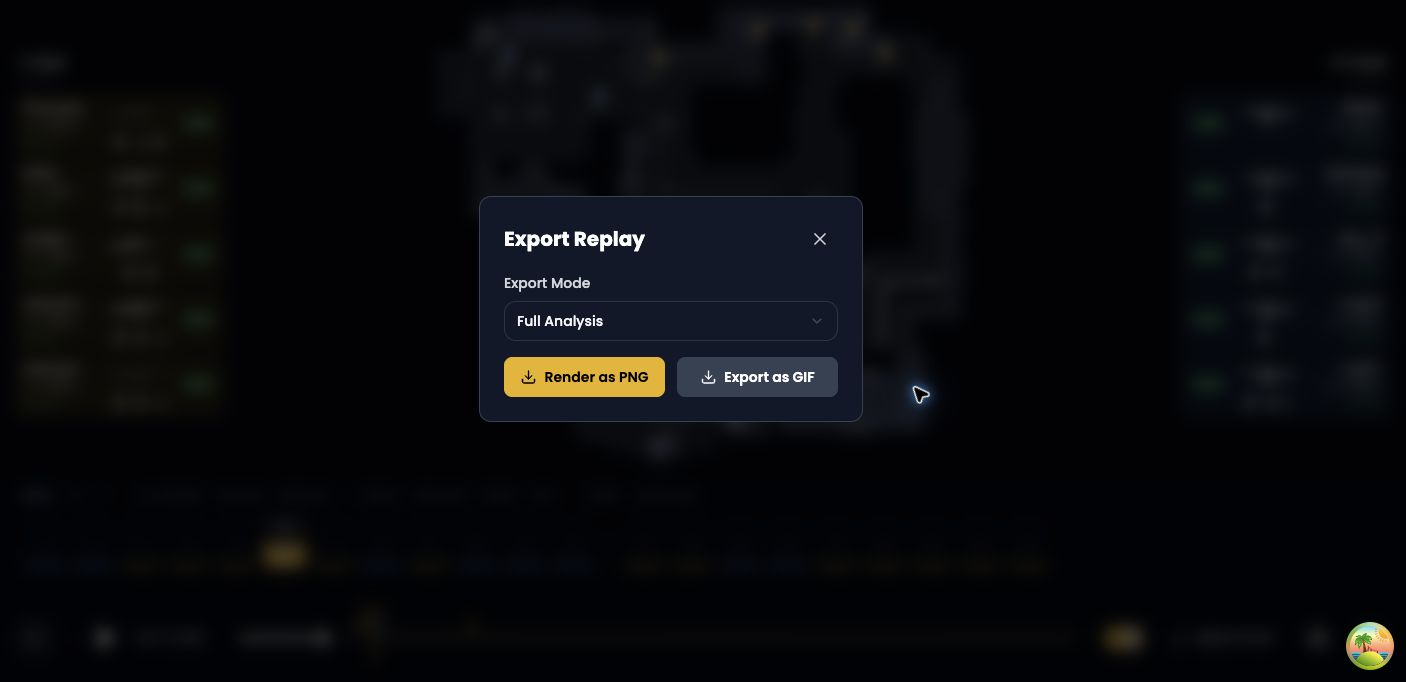
Open the viewer's export controls and choose PNG or GIF for the view you need. Follow any options and progress shown by the export flow. Keep the browser tab available while the export is being generated, then inspect the saved result rather than assuming every visible detail is readable at the final size.
For a still, check that labels and annotations remain clear when the image is opened outside the viewer. For an animation, check that the sequence starts early enough and ends after the point you are explaining. If the result is too busy, return to the view and simplify it before exporting again.
Common questions
Will a radar GIF include the player's in-game view?
No. It animates the radar replay. A Studio render creates the separate first-person gameplay video.
What should I include when sharing a review?
Include the match and round, the decision you are discussing and one concrete change to test. Keep proposed annotations distinct from observed play.
Put the guide to work
A focused radar export for team discussion. Open the tool when you are ready, or follow a related guide below.